
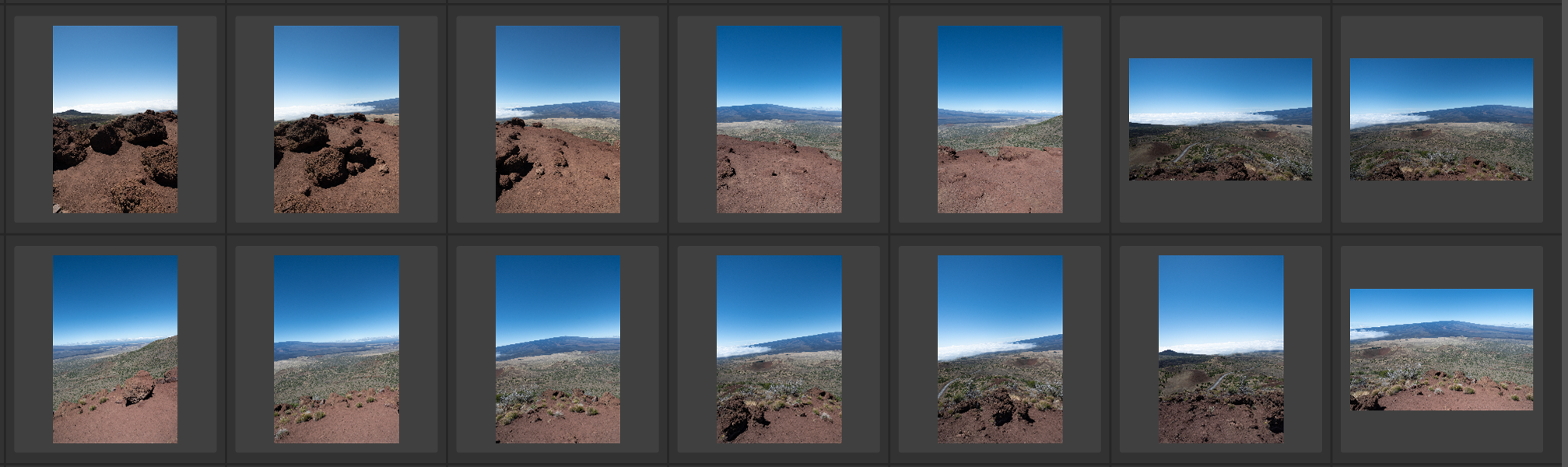
If you’re ready to dive into the world of automated photo analysis, Futura Photo is a powerful tool to help you organize and process large sets of images efficiently. This guide walks you through the essential steps to get started.
1. Watch the Demo
Before installing, take a few minutes to understand what Futura Photo can do. The demo provides a clear overview of its features and workflow.
> First Analysis with Futura Photo – Version 2.11
2. Download the App
Next, download the latest version of Futura Photo directly from the official website.
> Download Futura Photo – Camera Futura
3. Extract and Launch
Once the download is complete, extract the package and launch the application. The installation process is straightforward—just follow the on-screen instructions.
4. Complete the Tutorial
When you open the app for the first time, you’ll be guided through an interactive tutorial. Answer the questions carefully; this step ensures your initial configuration is optimized for your needs.
5. Start with a Simple Test
Begin with a small batch of 30–50 photos. This first test will help you get familiar with the interface and basic functionality without overwhelming your system.
6. Explore More Tutorials
After your initial test, dive deeper into advanced features. Pay special attention to tutorials on rules configuration, as these settings allow you to customize how Futura Photo analyzes and organizes your images.
7. Run Additional Analyses
Once you’re comfortable, try running one or two more analyses on larger sets of 60–100 images. This will give you a better sense of performance and help you refine your workflow.
Final Tips
- Keep experimenting with different settings to discover what works best for your projects.
- Bookmark the Tutorials – Camera Futura page for quick access to advanced guides.
- Check the FAQ page here: FAQ – Futura Photo – Camera Futura.
- Contact us if you have any questions at support@camerafutura.com
